Flow Builder Customization
Learn how to design conversational flows, customize your bot's personality, and configure automated responses using our visual builder.
Overview#
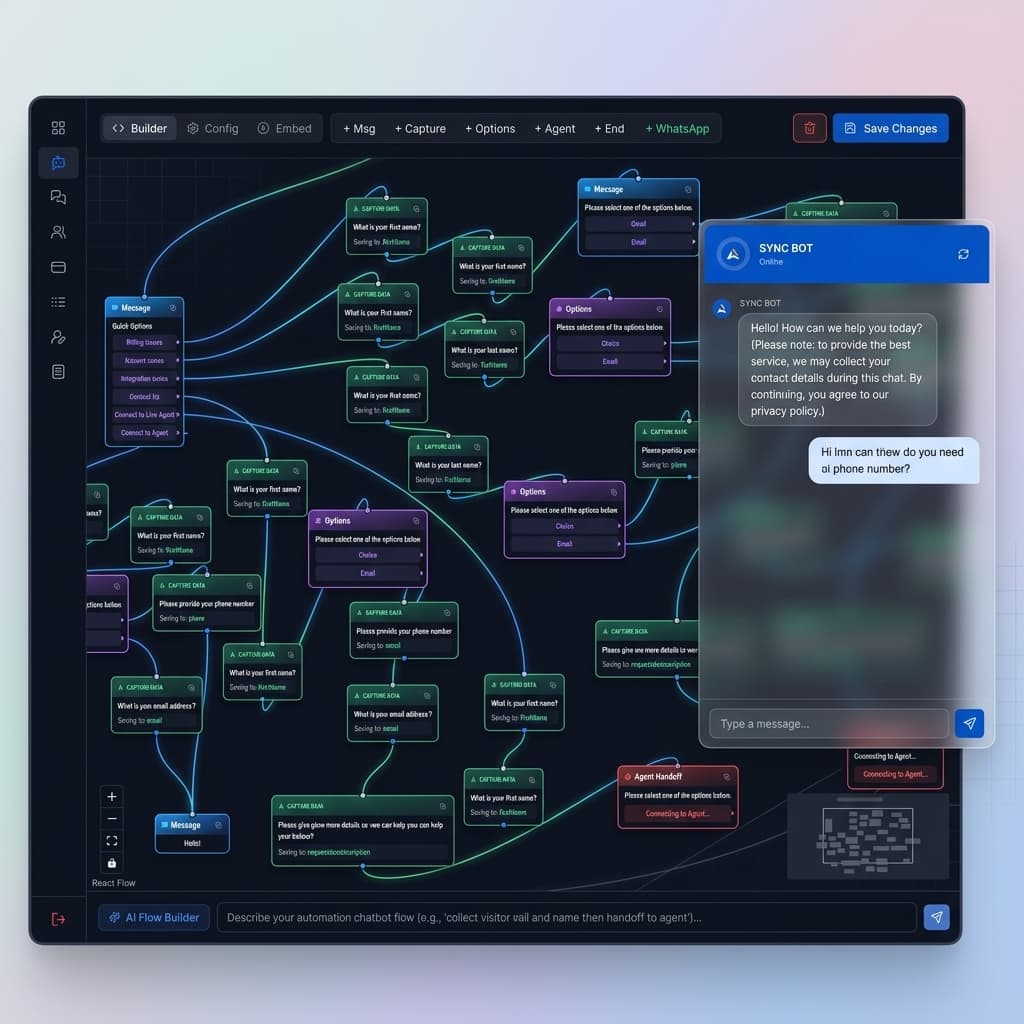
The Sync Flow Builder is a visual tool that allows you to drag, drop, and connect different "Nodes" to create a conversation path. When a user interacts with your chat widget, the bot follows this path step-by-step.
How it works
Every conversation starts with a Trigger Keyword (e.g., "Hi"). The bot then executes the flow connected to that trigger.
Node Types#
You can use five specific types of nodes to build your flow. Each serves a unique purpose in the conversation.
Message Node
Sends a text message or an image to the user. Use this for greetings, information, or instructions.
- Supports text styling
- Optional Image URL field for rich media
Capture Node
Asks a question and saves the user's answer into a specific CRM field (e.g., Name, Email, Phone).
Supported Fields: firstName, lastName, email, phone, requestDescription
Options Node
Presents clickable buttons to the user. This is crucial for branching logic.
How it works: Each option you add creates a new "connection point" on the node. You connect different message nodes to these points to create unique paths based on the user's choice.
Agent Handoff
Stops the automated bot and alerts your team. The conversation status changes to live_agent, and team members receive a notification to take over.
End Chat
Gracefully terminates the session. It sends a final goodbye message and disables the user input to prevent further replies. Useful for closing loops or after successful lead capture.
Bot Persona#
In the Config Tab of the builder, you can customize how your bot appears to visitors.
- Bot Name: Displayed at the top of the chat widget (e.g., "Sales Assistant").
- Trigger Keyword: The phrase that wakes up the bot (Default: "hi" or "start chat").
- Avatar: Upload your company logo to replace the default robot icon.
Flow Logic & Rules#
The bot engine follows specific rules to ensure smooth conversation flow.
1. Connection Rules
Every node must be connected via a line (Edge). If a node has no outgoing connection, the bot will stop there. If a user selects an option that isn't connected to anything, the bot will default to a fallback message.
2. Data Saving
Data is only saved to the Leads database if a Capture Node is used. Make sure to map the correct field (e.g., Email) in the node settings panel.
3. Session Timeout
If a user stops responding for more than 10 minutes, the session is automatically marked as endedand the transcript is emailed to the admin.
Testing & Preview#
The builder includes a live Preview Pane on the right side.